AI Face Enhancer

AI Face Enhancer Online

Enhance faces in photos with AI face restoration. Upload a soft portrait or selfie and recover clearer eyes, skin texture, and facial detail without manual retouching.

Powered by the Phota Enhance model (fal-ai/phota/enhance), the same face-aware enhancement engine used on the ImgEnhancer homepage. Ideal for portraits, profile photos, and close-up shots that need facial clarity.

Upload your image

Drag and drop, paste, or choose a file

Supports JPG, PNG, and WebP up to 10 MB

Sign up and get 25 free credits, enough for 1 free enhancement. No credit card required.

How to enhance a face in a photo

Run AI face enhancement online in three steps for clearer portraits and selfies.

1

Upload a portrait or selfie

Use a JPG, PNG, or WebP photo where the face is reasonably large in the frame.
2

Let AI restore facial detail

Phota Enhance improves facial clarity, skin texture, and soft detail automatically.
3

Download the enhanced portrait

Preview the face restoration result, then save the clearer photo.

What an AI face enhancer is for

An AI face enhancer focuses on people: eyes, skin, hair edges, and facial structure that often look soft after phone compression or older cameras. Searches for AI face enhancer, enhance face in photo, and face restoration usually mean “make this person look clearer without turning them into a plastic filter.” ImgEnhancer uses Phota Enhance, a face-aware model, to improve portraits while keeping identity recognizable. It is not a deepfake identity swap and not a beauty filter that reshapes bone structure for likes. Best results come from front-facing or three-quarter portraits where the face occupies a meaningful part of the frame. Tiny group-photo faces have fewer pixels to restore. If the whole photo is tiny, upscale first, then enhance faces. If blur is extreme, unblur first.

Face restoration without heavy retouching

Classic face restoration tools in design suites require healing brushes and frequency separation. AI face enhancement automates much of that cleanup: reducing softness, clarifying eyes, and recovering texture. You should still review results for natural skin—over-smoothed faces can look artificial, so compare before and after at 100% zoom.

Enhance face in photo for profiles and IDs

Profile pictures, team pages, and marketplace seller photos benefit when faces look crisp on retina screens. Keep lighting and expression from the original; enhancement should clarify, not reinvent. For old damaged prints, also see old photo restoration, which uses the same enhancement capability with archive-focused guidance.

Limits of face restoration AI

AI cannot reliably rebuild a face that is almost entirely missing, covered, or only a few pixels wide. Side profiles with heavy motion blur are harder than well-lit front portraits. We do not claim celebrity-grade remastering for every upload—preview and judge.

Face enhancer vs photo enhancer vs unblur

This page emphasizes facial restoration language and portrait tips. The general photo enhancer uses the same model for broader scenes. Unblur targets blur specifically. Use whichever wording matches your problem; the CTA still runs the real enhance or unblur flow the product supports.

Where face enhancement helps

Prioritize photos where a person’s face is the main subject and still visible.

Profile photos and avatars

Family portraits

Selfies from phones

Speaker and team pages

Marketplace seller photos

Restoring soft scanned faces

See AI face enhancement before and after
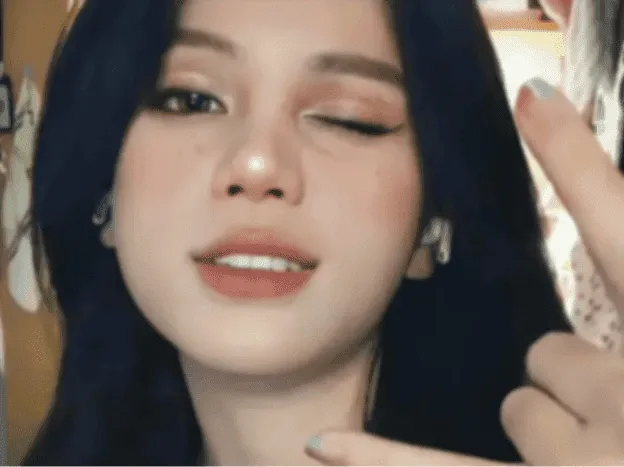
Blurry portrait before enhancement
Blurry portrait after enhancement
||

Blurry portrait

Best for selfies, profile pictures, and soft-focus portraits. This AI photo enhancer improves facial detail, eye clarity, hair edges, and skin texture while keeping the result natural instead of over-sharpened. Use the slider to compare the original image with the enhanced result and see how clarity, edges, and detail improve without making the image look artificial.

Face tools compared

Choose face enhancer, photo enhancer, or unblur based on the dominant issue.

Face Enhancer

Portraits and facial restoration

Clearer facial detail

Photo Enhancer

Overall photo quality

Cleaner full-frame photos

Unblur Image

Blurry faces and soft focus

Sharper deblurred detail

Old Photo Restoration

Aged prints and archive scans

Clearer restored keepsakes

Tips for better face restoration

Help the AI face enhancer recover natural detail.

Keep the face large in frame

Crop so the face is a major part of the image before enhancing.

Prefer even lighting

Harsh underexposure hides detail the model cannot invent.

Avoid already over-smoothed beauty filters

Heavy filters remove texture that restoration needs.

Check identity carefully

Enhancement should keep the person recognizable—discard results that look unnatural.

Private face enhancement

Portrait uploads are processed for enhancement and are not published publicly.

Supported formats

JPG

PNG

WebP

Up to 10 MB

Why use an online face enhancer?

A portrait-focused path to clearer faces using ImgEnhancer’s real enhance model.

Face-aware AI model

Phota Enhance targets facial detail in real photos.

Fast browser workflow

Upload, enhance, preview, download—no desktop suite required.

Secure processing

Your portraits are not posted to a public gallery.

AI face enhancer FAQ

Questions about enhancing faces in photos and realistic face restoration limits.

What does an AI face enhancer do?

It improves facial clarity—eyes, skin texture, and soft detail—using a face-aware enhancement model. It is for restoration-style clarity, not identity swapping.

Is face enhancement free to try?

Yes, with available credits on ImgEnhancer.

Can it restore any damaged face?

No. Faces that are tiny, fully covered, or extremely blurred have limited recovery. Honest results require a recognizable face in the source.

Is this the same as the homepage enhancer?

Yes—the CTA uses the same enhance flow powered by fal-ai/phota/enhance. This page focuses on face-restoration intent and guidance.

Will it change how someone looks?

It should clarify detail while keeping identity. Always review before publishing sensitive portraits.

What formats are supported?

JPG, PNG, and WebP up to 10 MB.

Should I upscale before enhancing a tiny face?

If the face is very small, increase resolution first, then run face enhancement.

Do you show fake ratings?

No. Preview the real output and decide for yourself.

Read the AI image enhancer guide for more context. Try the AI image enhancer or continue with the AI photo enhancer, AI image upscaler, old photo restoration tool when you need broader photo quality, more pixels, or archive restoration beyond faces alone.